Support
Thank you very much for purchasing my Theme. We've put a lot of hard work into it, and we hope you love it as much as we do. As far as the documentation is concerned, we have tried to cover as much as possible to help you get your new Theme up and running and to help you customise it.
We love to hear your feedback - if you find any bugs or have suggestions for improvements please get in touch. Nearly all of the time we follow your advice.
If you like our work, please rate it. If you’re about to rate it with less than 5 stars, please let us know the reason first and we will do our best to improve the theme. Thanks so much!
WordPress Information
Since WordPress is constantly being updated information about how to install WordPress may become out of date, so you always can read official guide HERE
Below are all the useful links for WordPress information:
- WordPress Codex – general info about WordPress and how to install on your server.
- First Steps With WordPress – general information that covers a wide variety of topics.
- FAQ New To WordPress – the most popular FAQ’s regarding WordPress.
Theme Installation
Once you've downloaded the installation file extract it and locate a file called
buildex.zip. You can install the theme by using one of two installation
methods:
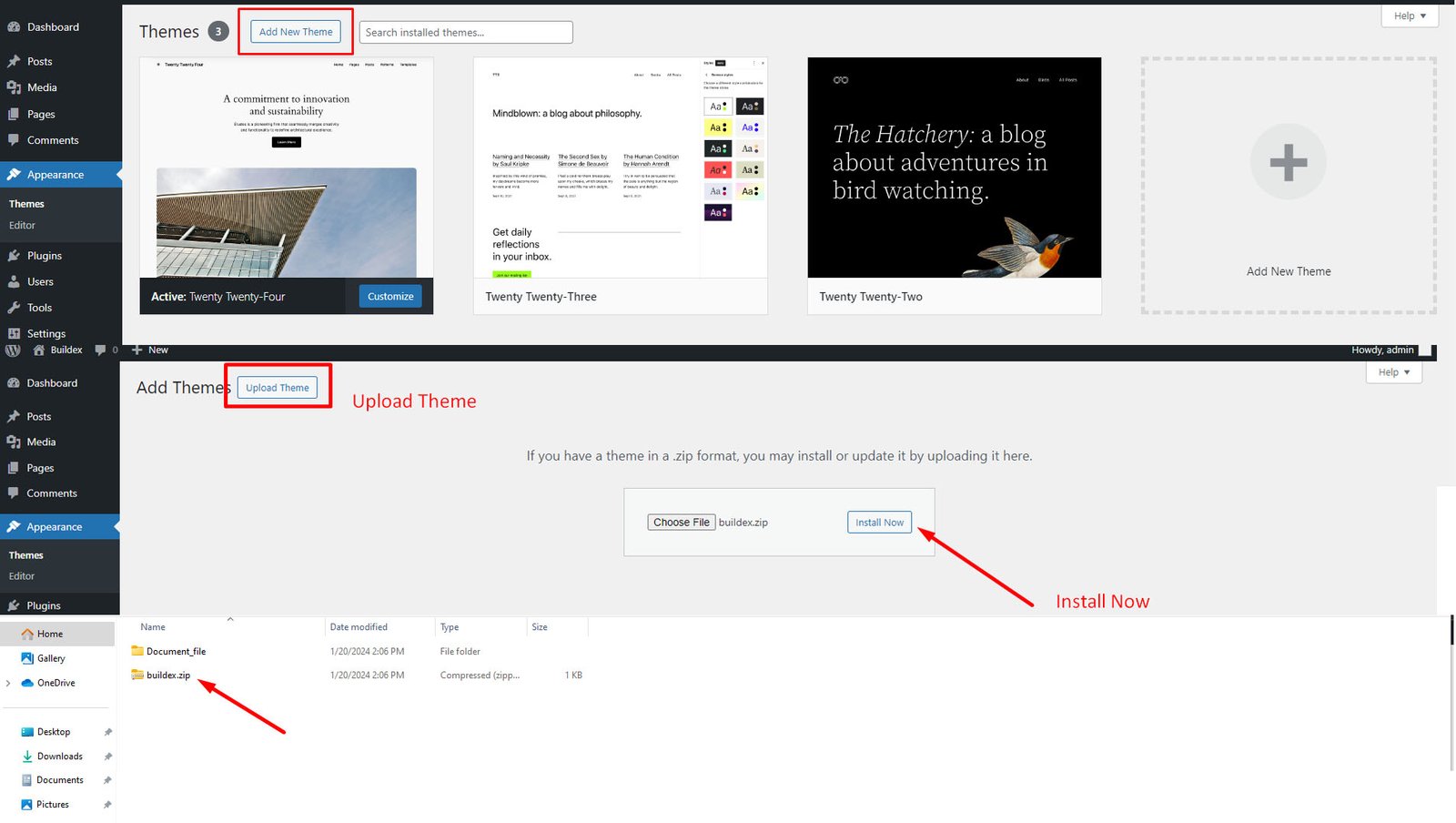
WordPress upload
- Login to WordPress admin.
- Go to Admin panel > Appearance > Themes > Add New > Upload Theme.
-
Click on
Choose File and select
buildex.zip. - Click on Install Now.
- When your theme is successfully installed, click Activate to activate the newly installed theme.
FTP upload
- Using FTP client, login to the server where your WordPress website is hosted.
-
Using FTP client, navigate to the
/wp-content/themes/directory under your WordPress website's root directory. - Using FTP client, upload the Paragon directory to themes directory on remote server.
- Once uploaded, navigate to Dashboard > Appearance > Themes in the WordPress Dashboard and hit Activate below your newly uploaded theme.
When you use first or second method, please make sure that you're uploading the
buildex.zip file, not entire package you downloaded. If you upload
the wrong file you will get an error stating
“Error: missing style.css stylesheet.”
Once installation is complete, your buildex theme will be ready to use. You should now see buildex theme as active.
Installing Required Plugins
When you first install the theme you'll see a popup on your dashboard from the theme asking you to install a number of plugins.
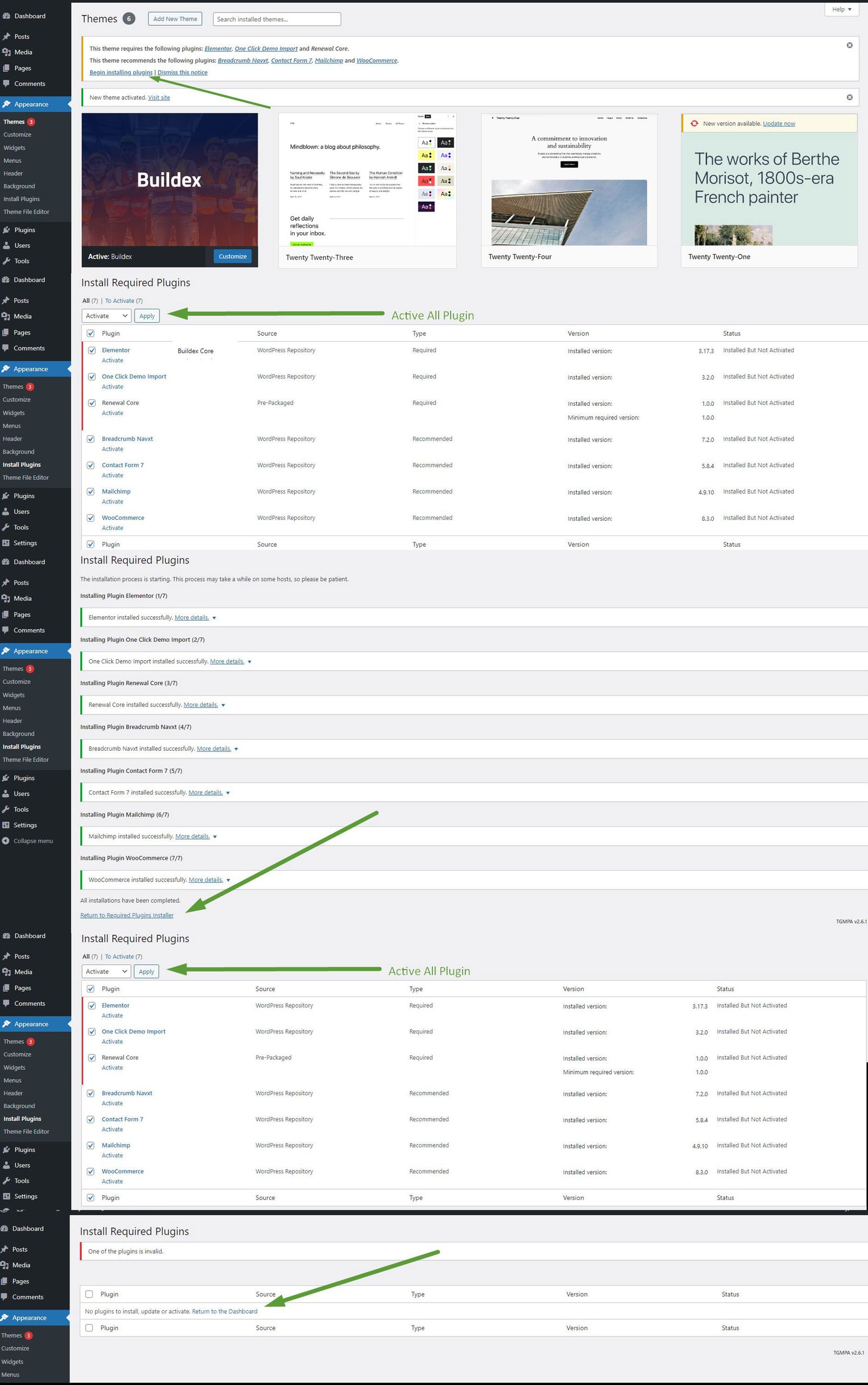
You must install and activate all plugins
Demo Install
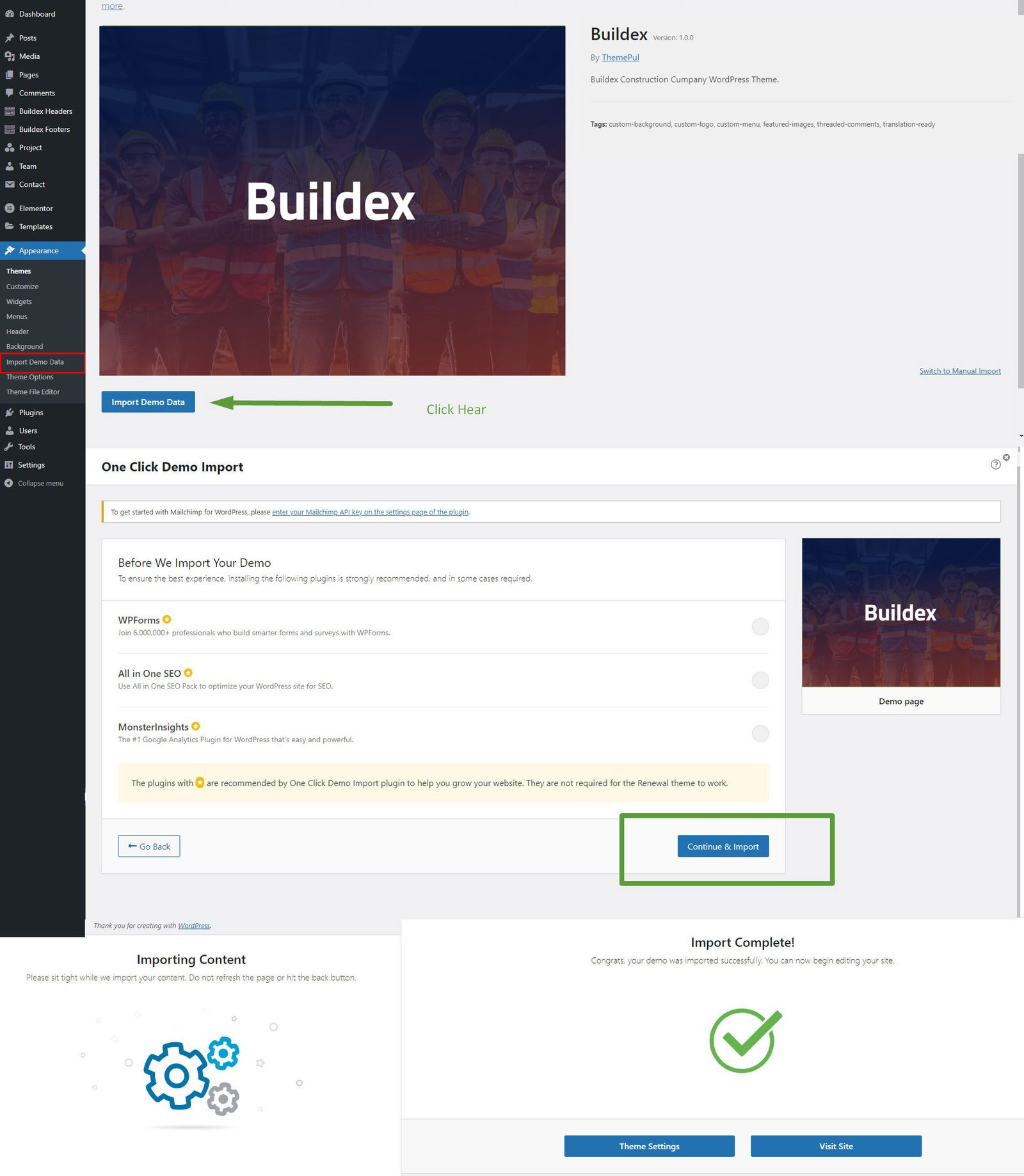
Install Plugin buildexcore and go to buildex Options > Import Demo
Install and Activate all required plugins and click to Install. The upload process can take up 5 minutes. So please, be patient and do not close the page.
Theme Settings
Ok, so far we have installed the theme, we have installed the plugins and imported the demo data, whats next?
The final step in getting your new theme setup and ready for you to edit as you wish is to setup your home page and menu. To begin, head to Settings > Reading, here you will need to set your Front Page.
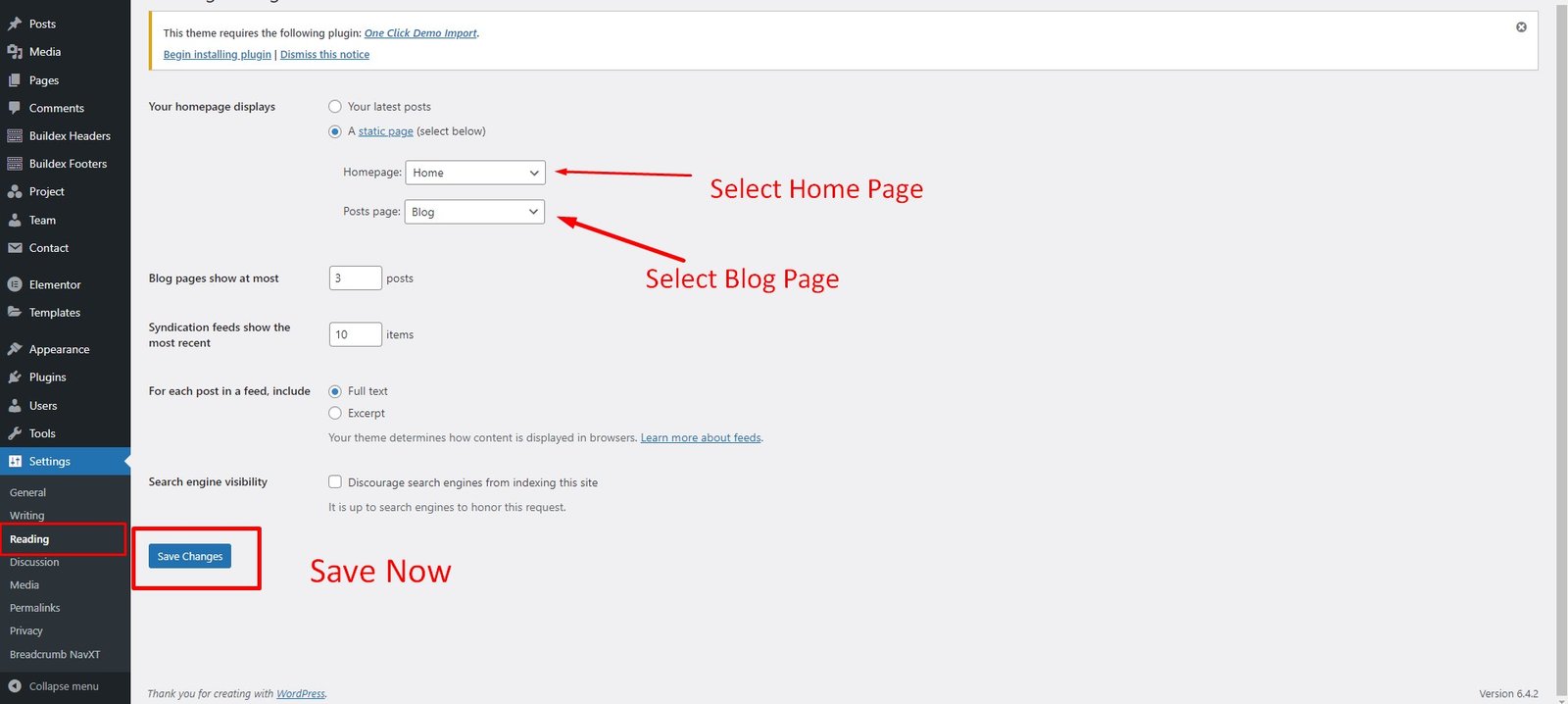
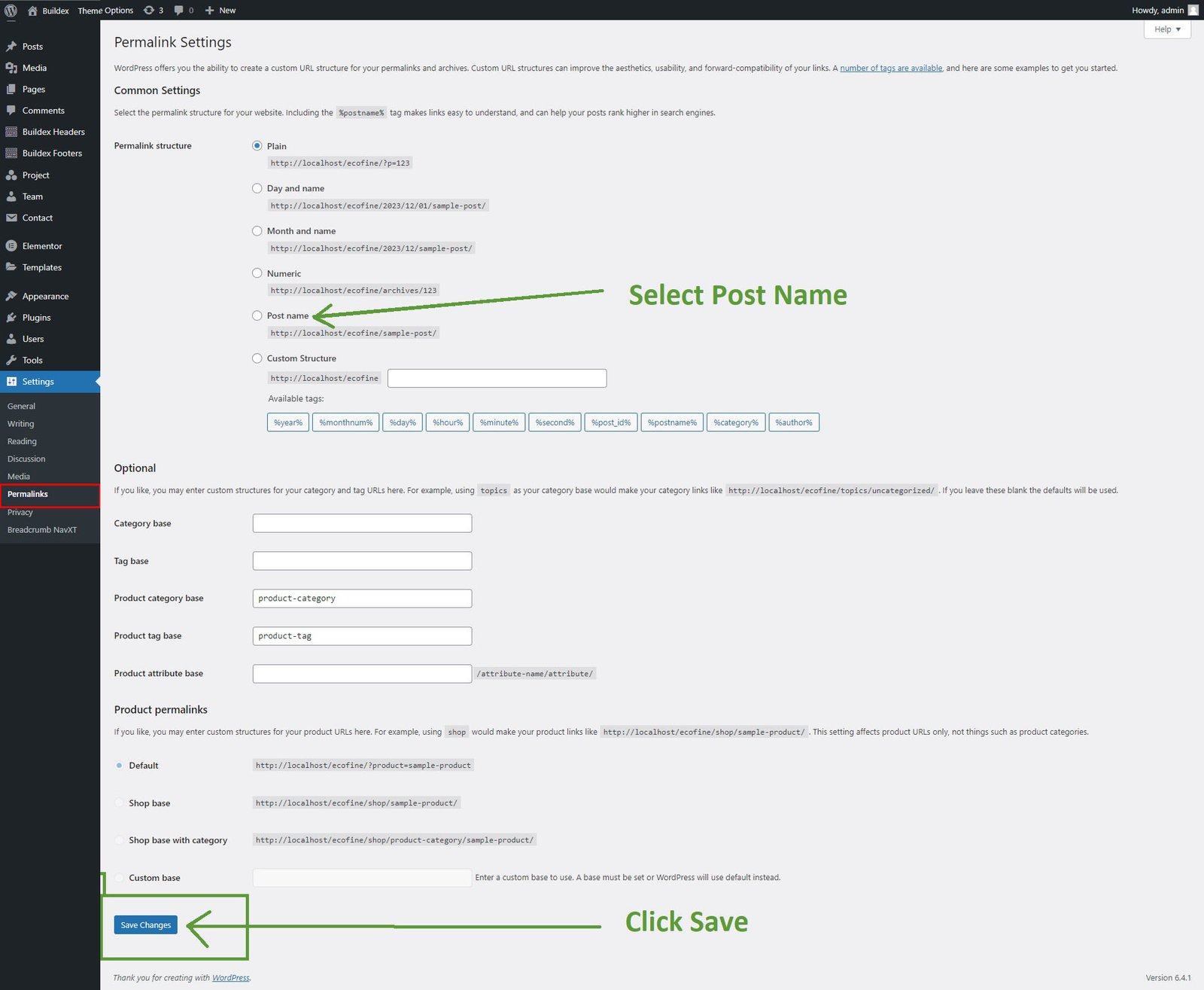
Finally, if you have not done so already, its highly advisable to update your permalink settings. To do this, head to Settings > Permalinks and select any option other than default. We recommended 'postname' - as you can see below.
How to Set Up Menus
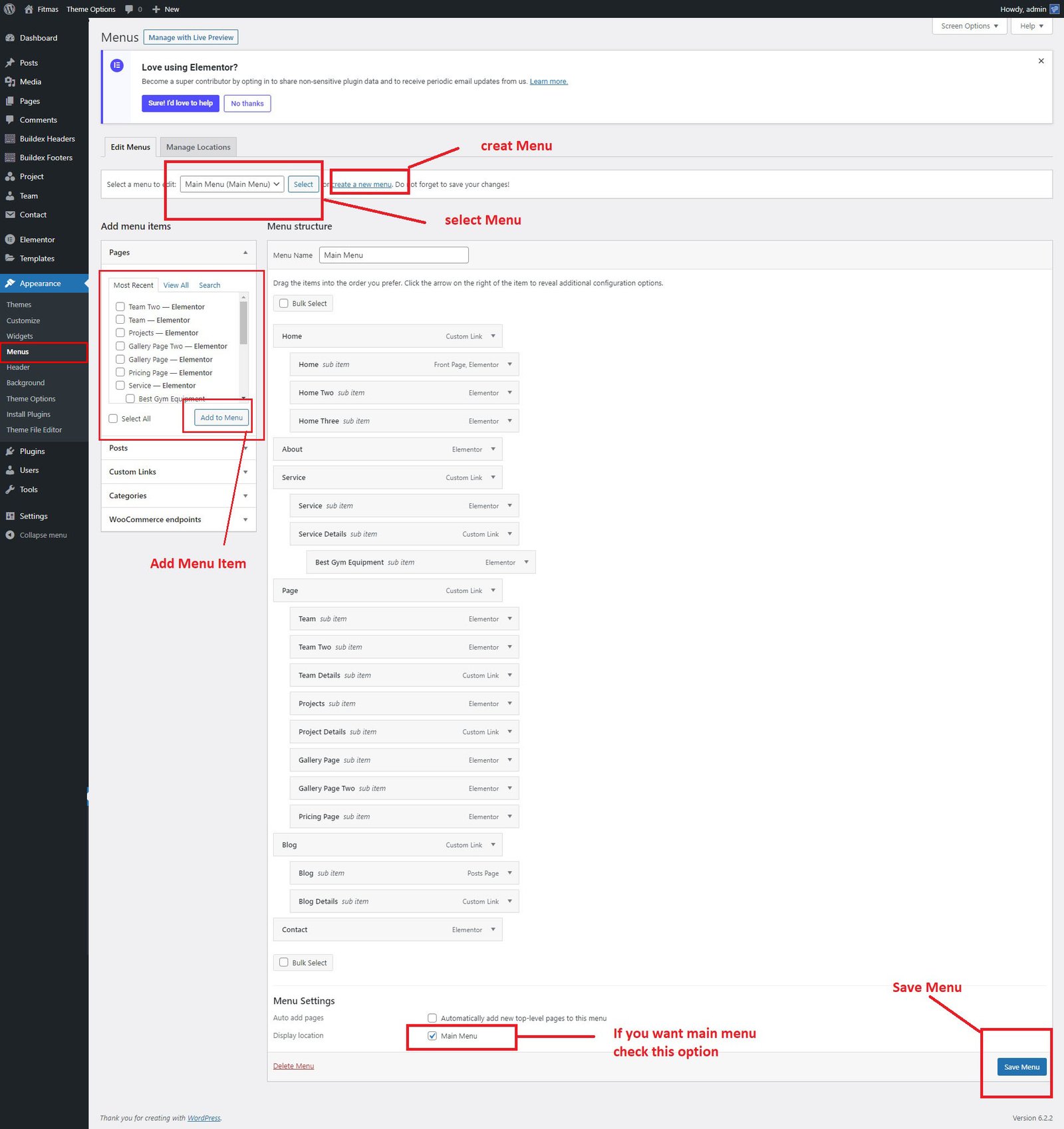
To create and activate your new menu follow the steps below:
- Log in to that site as an administrator.
- Go to Appearance > Menus panel.
- Give your menu a name and click Create Menu button.
- Add few simple links form Links tab.
- Save your menu.
- Navigate to Manage Locations tab (at the top of the screen).
- Choose your new menu as Header Menu.
- Save changes.
Theme Options
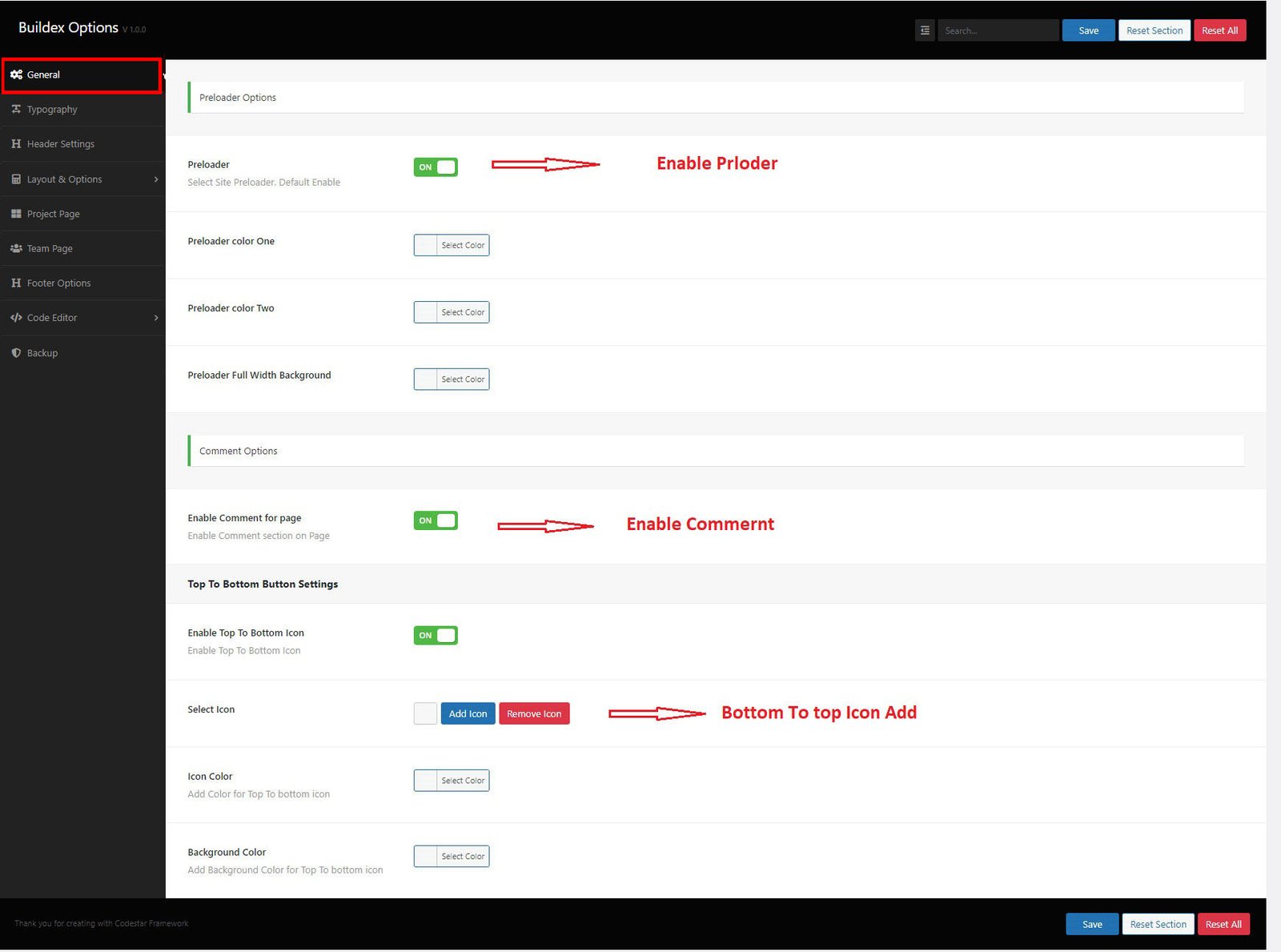
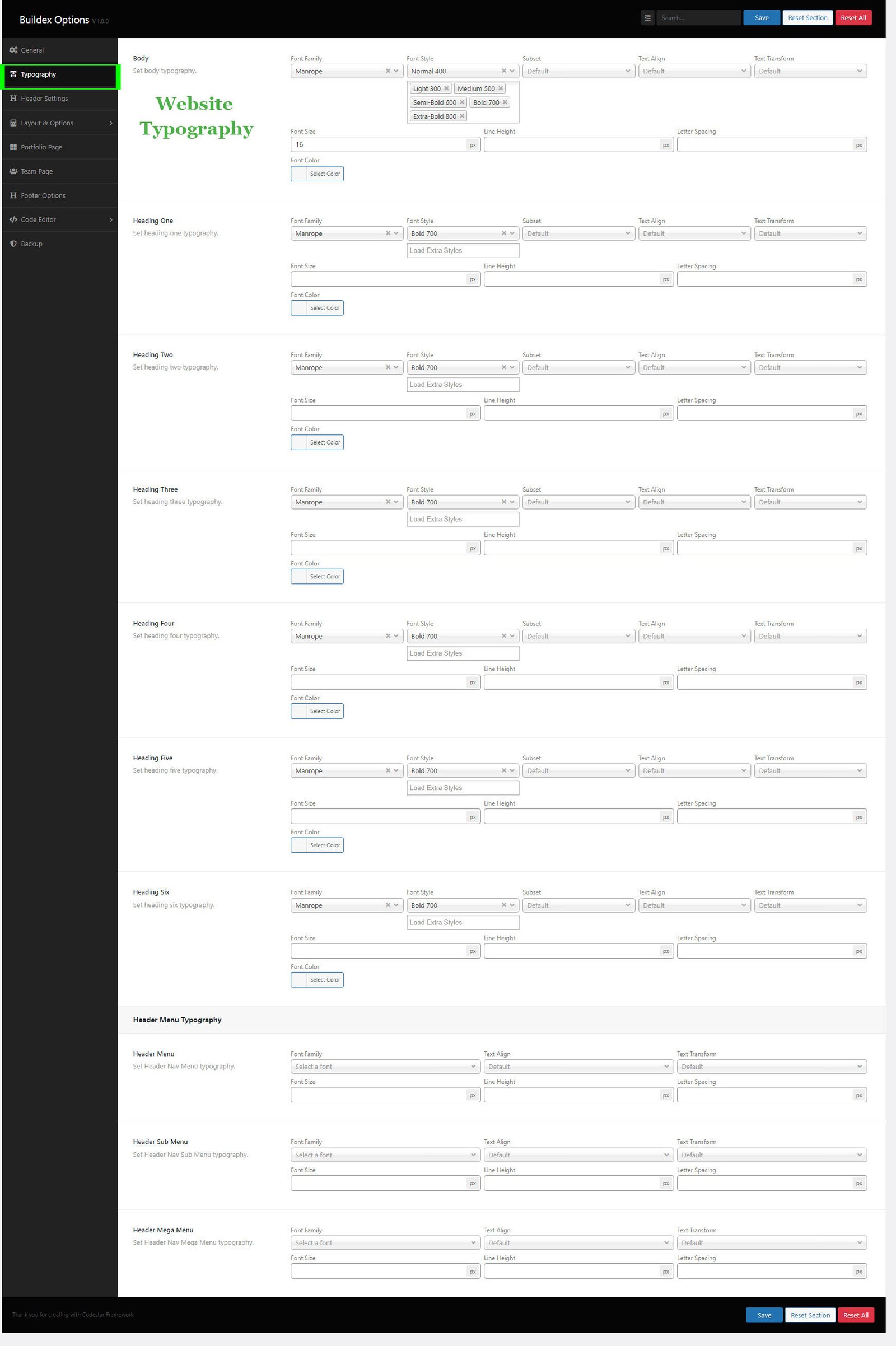
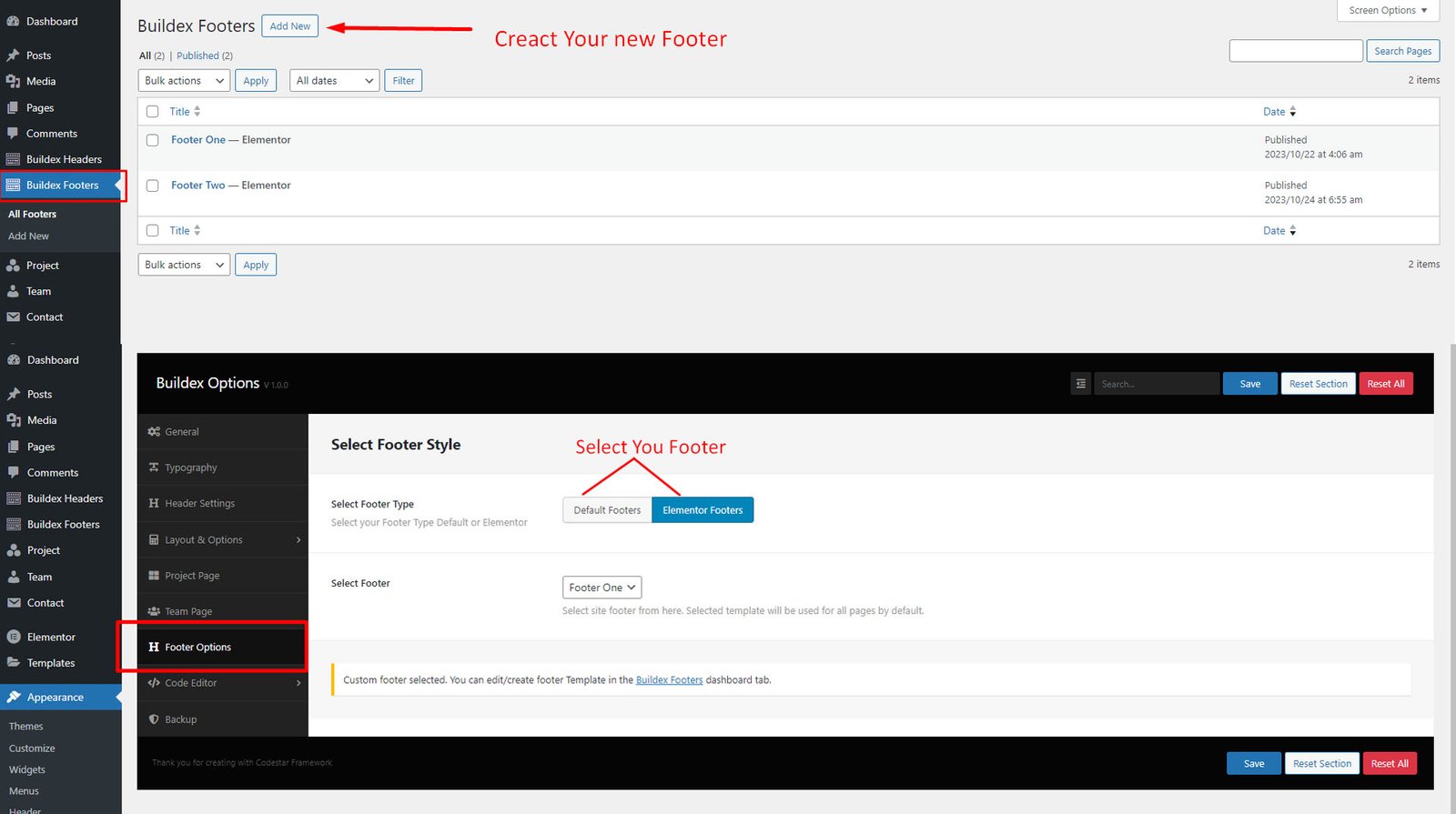
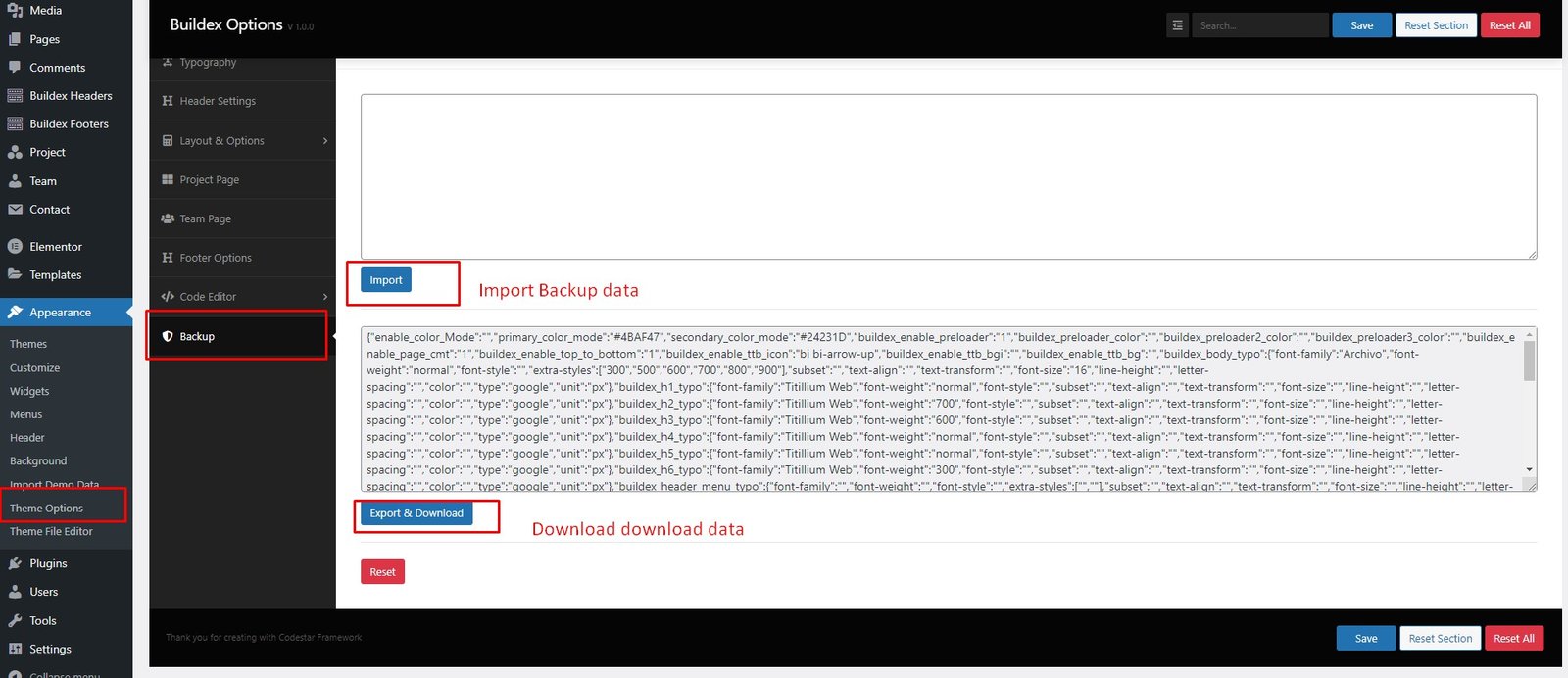
The main theme settings are in Theme Options Panel
- Log in to that site as an administrator.
- Go to Appearance > buildex Options
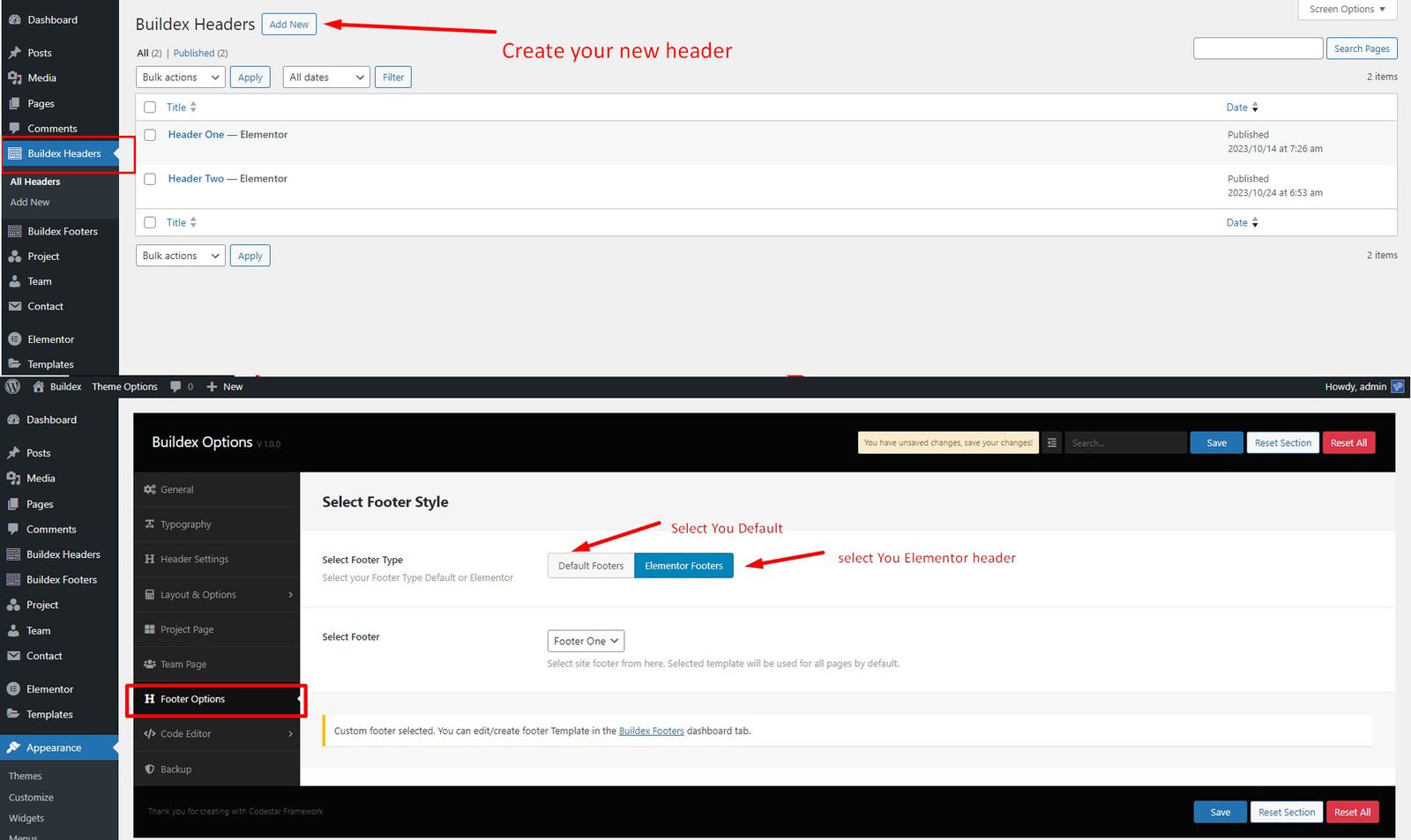
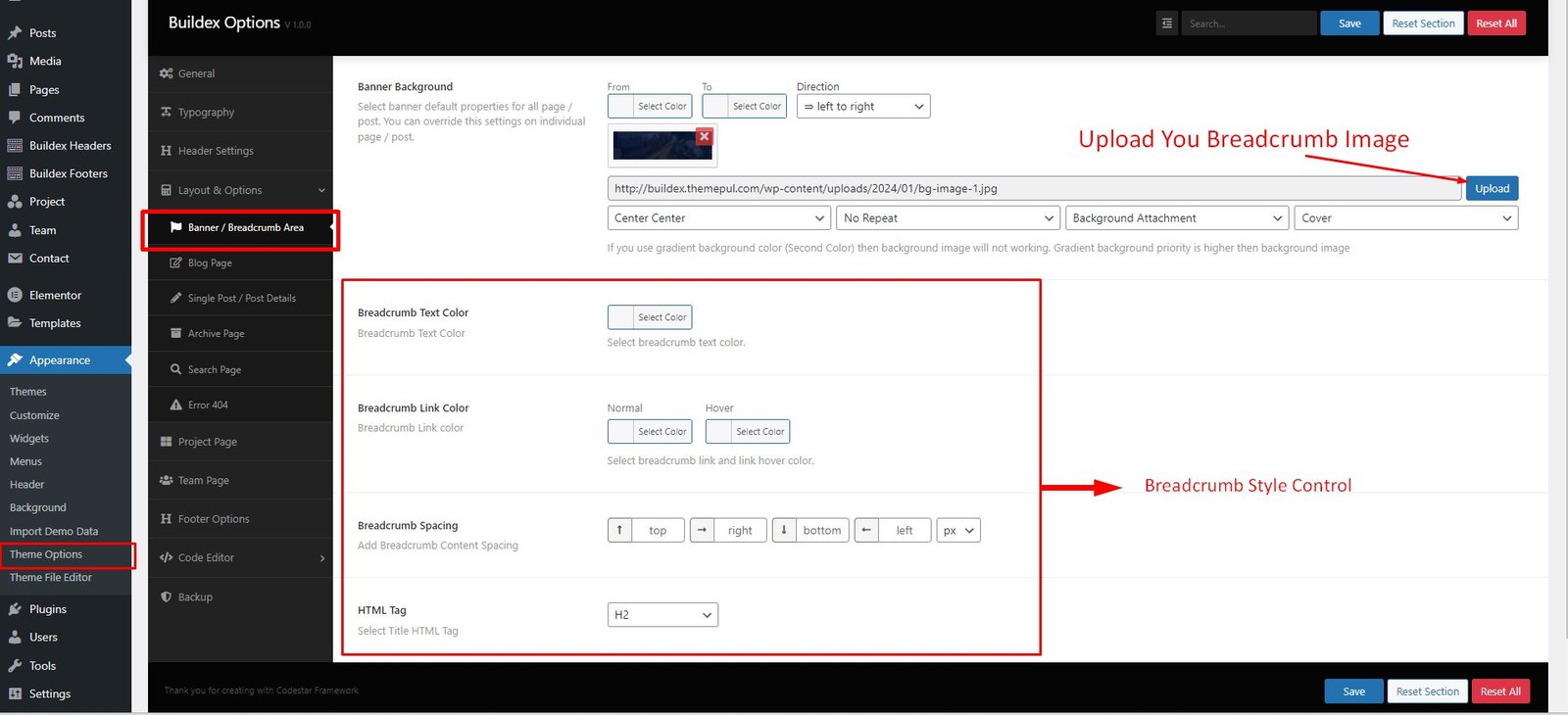
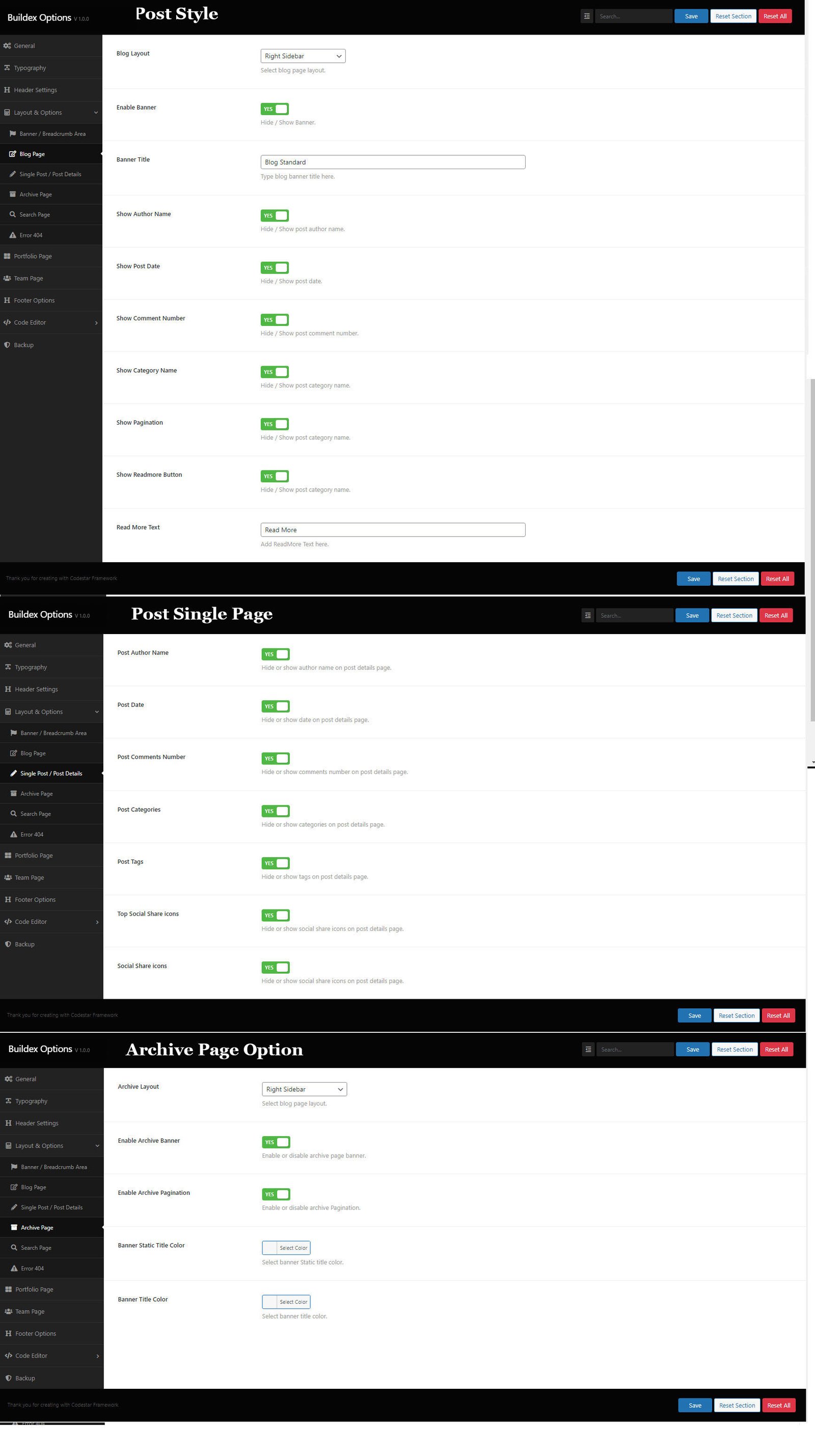
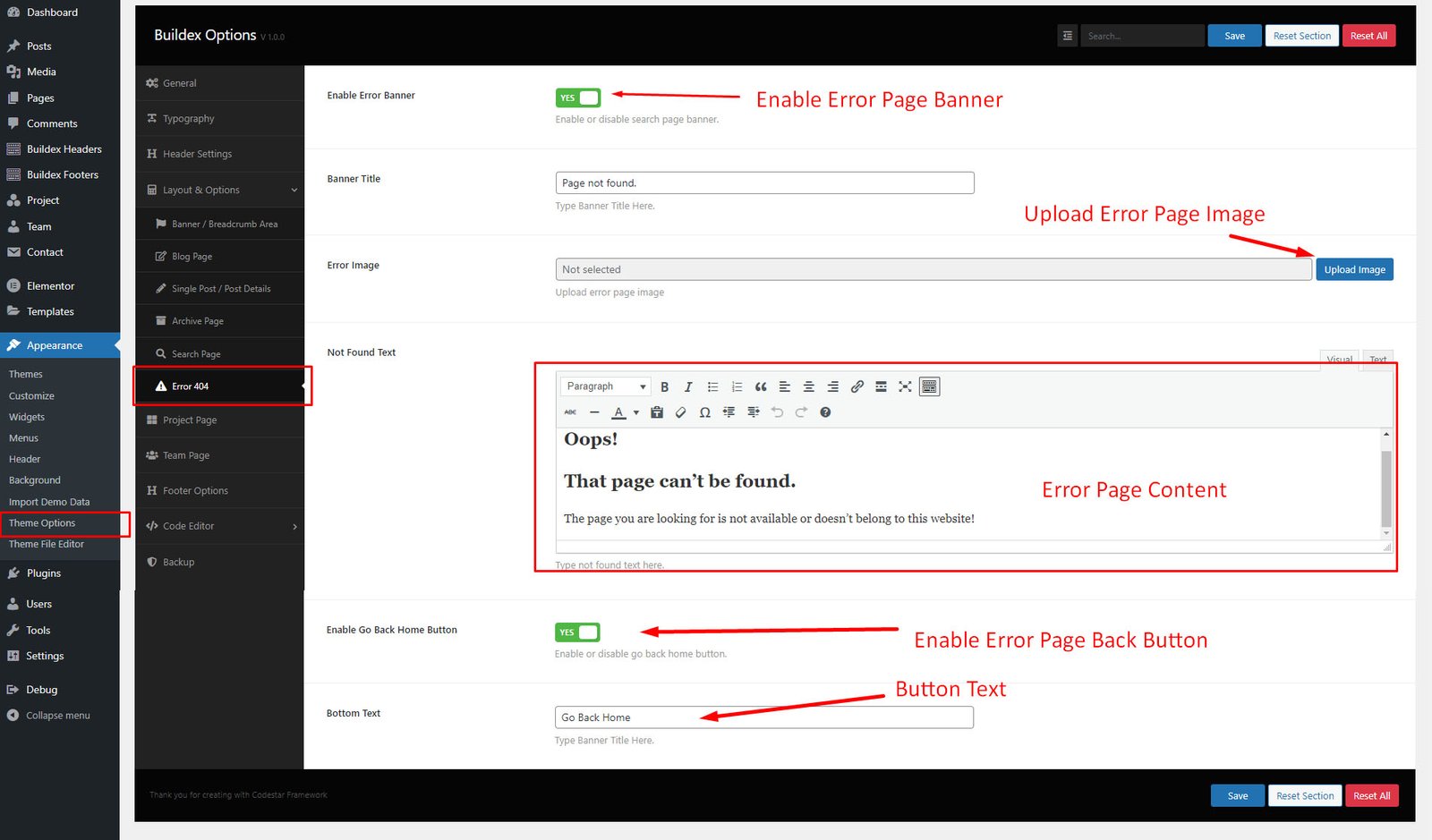

Elementor Page Builder
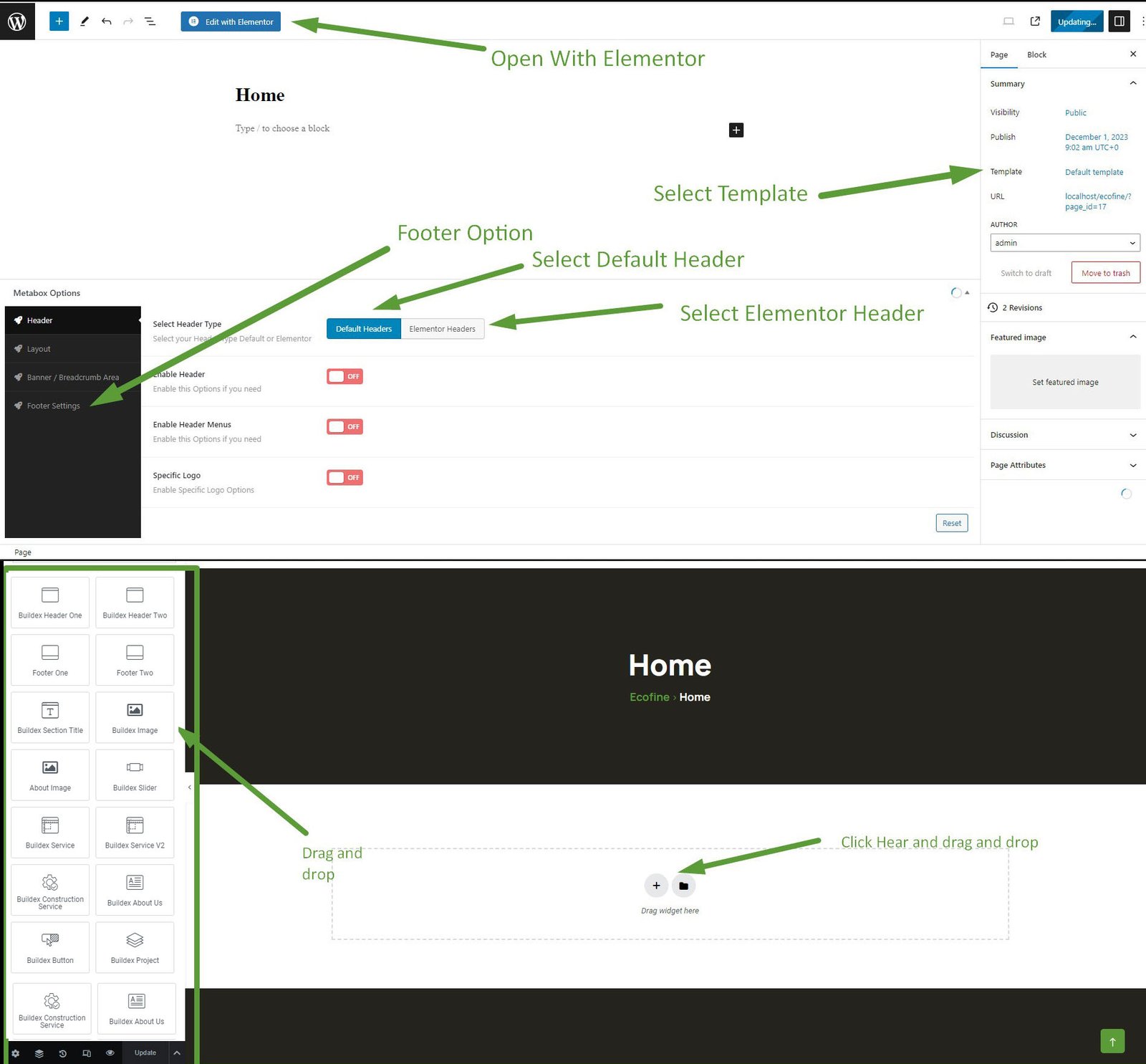
How To Use Elementor
Contact Form One
For the form, we use the plugin Contact Form 7
Contact Form 7 is our recommended form plugin for WordPress. It is a simple but powerful form creator for WordPress. Here we will show you how to use Contact Form 7 to create and edit a basic form.
After Contact Form 7 is installed, you will find a new menu item in your WordPress admin area called Contact, here is where your forms and created and edited.
Appointment Form
                                    <div class="row appoinment-form">
                                        <div class="col-lg-12 col-md-12 col-12">
                                            <div class="form-input-area fname">
                                                [text aname placeholder "Your Name"]
                                            </div>
                                        </div>
                                        <div class="col-lg-6 col-md-6 col-12">
                                            <div class="form-input-area femail">
                                                [email* aemail placeholder "Enter Your Email Address"]
                                            </div>
                                        </div>
                                        <div class="col-lg-6 col-md-6 col-12">
                                            <div class="form-input-area fselect">
                                                [select* aselect first_as_label "Select Your Services" "One" "Two" "Three"]
                                            </div>
                                        </div>
                                        <div class="col-lg-6 col-md-6 col-12">
                                            <div class="form-input-area tselect">
                                                [select* tselect first_as_label "Select Time" "09.00 AM to 10.00 AM" "10.00 AM to 11.00 AM" "11.00 AM to 12.00 AM"]
                                            </div>
                                        </div>
                                        <div class="col-lg-6 col-md-6 col-12">
                                            <div class="form-input-area fnumber">
                                                [tel atel placeholder "Phone Number"]
                                            </div>
                                        </div>
                                        <div class="col-lg-12 col-md-12 col-12">
                                            <div class="form-input-area message fmessage">
                                                [textarea* amessage 10x4 placeholder "Your Message Here"]
                                            </div>
                                            <div class="form-contact-button button">
                                                <button value="submit" class="theme-btns"><span>Make Appointment <i class="fas fa-arrow-right"></i></span></button>
                                            </div>
                                        </div>
                                    </div>
Faq Contact Form
                                    <div class="row">
                                        <div class="faq-form">
                                          <div class="col-lg-12 col-md-12 col-12">
                                            <div class="form-input-area faqname">
                                               [text faqname placeholder "Full Name"]
                                            </div>
                                        </div>
                                        <div class="col-lg-12 col-md-12 col-12">
                                            <div class="form-input-area faqemail">
                                                [email faqemail placeholder "Email Address"]
                                            </div>
                                        </div>
                                        <div class="col-lg-12 col-md-12 col-12">
                                            <div class="form-input-area faqsubject">
                                                [text faqsubjects placeholder "Subjects"]
                                            </div>
                                        </div>
                                        <div class="col-lg-12 col-md-12 col-12">
                                            <div class="form-input-area message faqmessage">
                                                [textarea* faqmessage 10x5 placeholder "Your Questions"]
                                            </div>
                                            <div class="form-contact-button button">
                                                <button value="submit" class="theme-btns"><span>Submit Now</span></button>
                                            </div>
                                        </div>
                                       </div>
                                    </div>
Footer Newslatter
                                    [email* email placeholder "Enter your email address"]
                                    [submit "Subscribe"]
Sidebars & Widgets
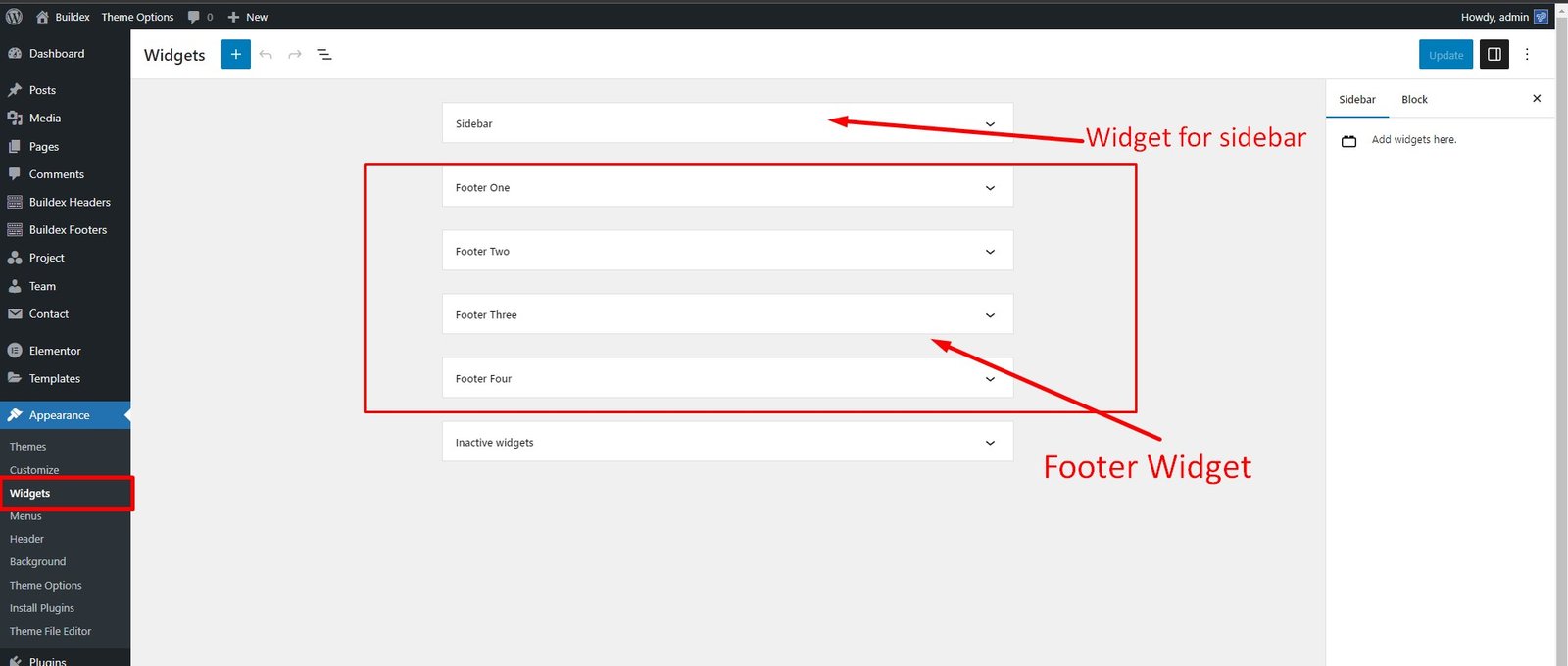
You can drug & drop widgets into the sidebars
- Go to Appearance > Widgets.
Translation
Theme is ready for translation and included
.pot file.
buildex/language/buildex.pot
You can translate theme with
Poedit or install plugin
Locotranslate
More Information here